
4 Simple Tips for Making Better Video Calls

Remote and hybrid work mean fewer face-to-face meetings than a traditional office, but that doesn’t mean Monday morning meetings or client check-ins go away. They just move to the digital space, and this is where video calls reign supreme.
However, not many of us are familiar with videos and what it takes to make a video call better. If this sounds like you, or you want to help someone struggling with their video presence, keep on reading for four tips on how to successfully make better video calls.
Why Video Calls Are a Powerful Communication Tool
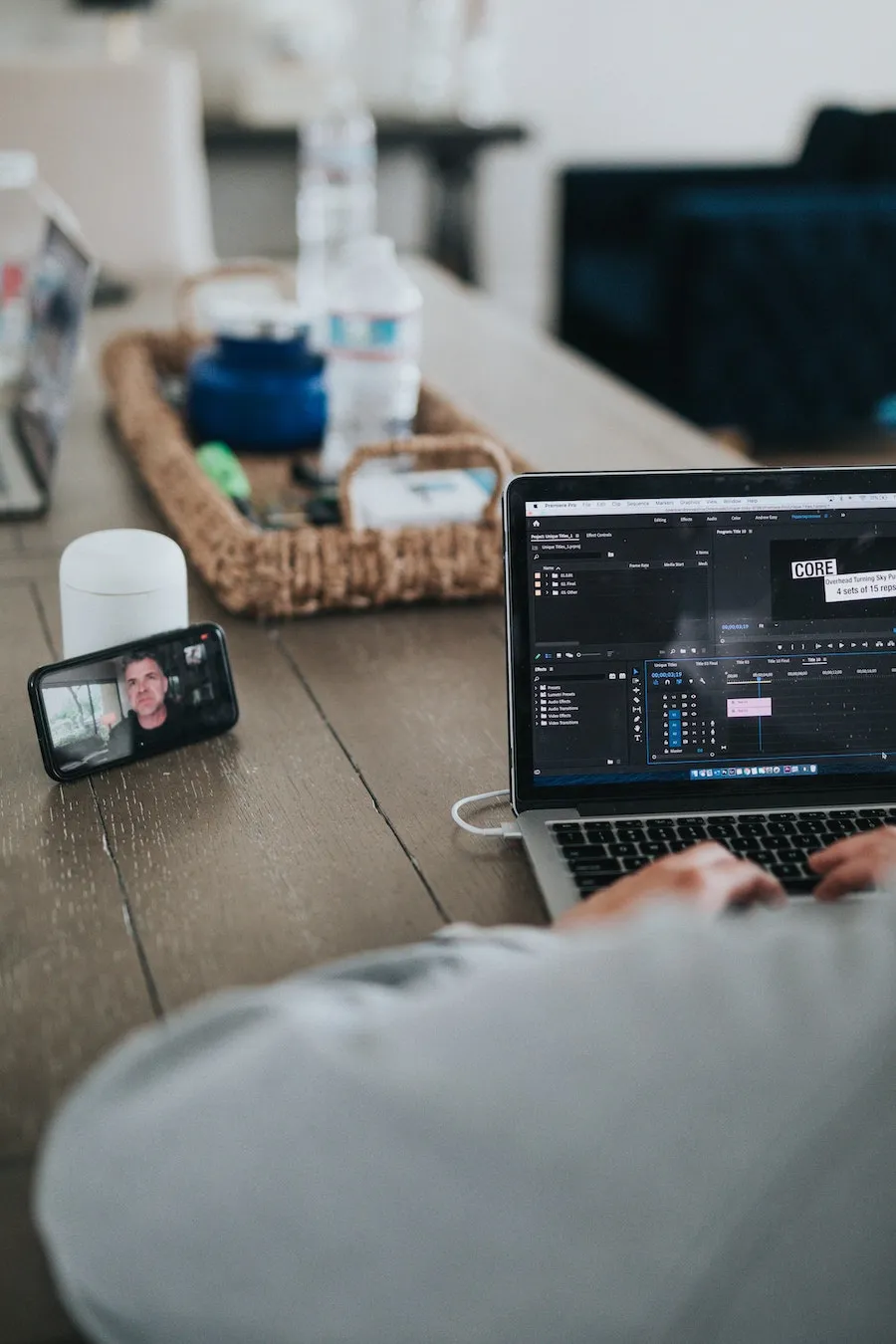
When your team is spread across different cities or time zones, traveling for a meeting isn’t always a viable option. Video calls are the next best thing to meeting someone in person and an important part of working as a remote team effectively. Plus, with video calls, there is no need to travel, which saves everyone time and money.
Besides that, here are a few more reasons why video calls are so great:
- Organizing meetings is easier: Video conferencing only needs participants to have a computer or mobile device with the right video calling app. This means no more chasing people around and rallying them to get into the meeting room. Plus, everyone sees each other, which makes communication easier and allows for everyone to be heard.
- Visual cues are available: Sure, voice-only is an acceptable option, but it lacks visual cues, which can often mean the difference between a failed or successful conversation. From body language to smiles to nervous twitches, all these help us adjust our conversation strategy on the fly and drive results.
- Provides a competitive advantage: This is true in regards to your competitors who are not taking advantage of video calls. By continually building and sustaining relationships with employees and customers when you can’t meet in person, they will feel valued. Employees remain productive and customer satisfaction increases.
4 ways to improve your video calls
Before you begin the call, make sure you have the essentials – an internet-enabled device (computer, smartphone or tablet with charged batteries) and a strong internet connection. After that, follow the tips below to make better video calls:
1. Prepare your environment
The first thing you’ll want to do is find a quiet place where you can make the call. Then you have to make sure that your background is something plain in order to not distract the other parties to the call. A tidy office can help with that.
If you have a window in the background, the light can cause a glare, making you hard to see. Also, make sure that you have adequate (not too much) light shining on you so everyone can see you clearly.
2. Choose the Right Video Calling App
There are plenty of video calling apps out there, but not all of them make for the best experience. However, there are some that have become a staple for many business and personal communications. Try any one of the options below and save yourself the headache and frustration of scouring the internet.

Zoom
Zoom has emerged as one of the most convenient and easy-to-use video conferencing apps out there. It also has good collaborative features, such as screen sharing, content sharing and annotations, that make collaborations easier. You can even record sessions to playback later in case you missed anything.
One of the standout features of zoom is its “Touch Up My Appearance” feature. This is basically a beauty filter that makes your look more presentable, even when you are not wearing any makeup or your hair is in a mess. This means there is little need to make yourself look presentable before the meeting – just click a button and you are good to go.
Other features of Zoom include:
- Scheduling of meetings
- Up to 10,000 participants in a single video call
- Zoom rooms
- On-screen whiteboards
- Webinars
- App integration
- You can have fun with backgrounds: Marvel and Star Wars are our favorites
MS Teams
If you love MS Office 365, then you would be glad to know that MS Teams is part of it. MS Teams is a collaborative platform that allows teams to coordinate and organize their operations from a single location. This also includes the ability to make conference calls with up to 250 members for some productive team up sessions.
Here are some other features of MS Teams worth mentioning:
- Screen sharing and recording
- File sharing and storage
- Built-in integration with MS Office applications, among others
- Workflow automation
Google Meet
If your team already lives in Google Workspace, Google Meet is the path of least resistance. It’s built into Gmail and Google Calendar, so meetings can be joined straight from a calendar invite with no separate app download required on desktop.
Here’s what Google Meet allows you to do:
- Join directly from a browser, no account needed for guests
- Screen sharing and in-meeting chat
- Live captions and translated captions
- Recording and transcription on paid Workspace plans
3. Use a Noise-Cancelling App like Krisp.ai
Sometimes, the person you are talking to might not be in a quiet place. Between roommates, kids, and pets, a home office can be a noisy environment. Krisp allows you to mute all background noise with a click of a button so that you can hear the other person loud and clear. And the beauty about Krisp is that it works with Zoom, MS Teams and Google Meet.
If you’re the one calling from somewhere loud, an airport, a cafe, a house full of kids, our guide on making better calls in noisy environments goes deeper on the microphones and headsets that actually help.
4. Set Up Your Computer
With your environment and apps all set, you need to make sure your computer hardware is ready for the call. Here is what you can do:
- Use headsets and a microphone: If you are in a noisy environment or just want to hear the other person more, you can use high-quality headsets. It is better to get the ones with a microphone so that you can talk directly into it so the other person can hear you clearly as well.
- Turn on the captions: If you don’t have a headset, you can turn on live captions on apps like Zoom and Google Meet so you don’t miss a thing.
- Remove high bandwidth eaters: Some of the devices and apps can hog the bandwidth if not removed. Low bandwidth can cause the screen to become pixelated, the voice to cut in and out and/or even cause a full-on disconnection. For example, if someone is streaming HD movies on Netflix in the next room, you can experience a significant drop in signal quality. Disconnect those devices and put all bandwidth-eating apps to sleep.
- Test your connection: This will allow you to find out if anything is lowering your network quality so you can remedy the situation.
- Know that voice-only is also an option: Sometimes, no matter how hard you try, a video call is not always possible. Rather than canceling the entire meeting, you can just switch to voice calls. All the apps mentioned above have this option.
Make Every Call Feel Like an In-Person Meeting
Video calls, especially video conferencing, has become an important tool for effective communication. If you are looking for ways to make better video calls, follow the tips outlined above. Make sure your environment is set up correctly, pick an appropriate app, cancel any noise with Krisp and make sure your computer is all set hardware-wise. These tips will ensure the best experience for everyone and prevent you from showing up in a youtube compilation.